ERP Workflow Automation – How It Saves Time & Improves ROI

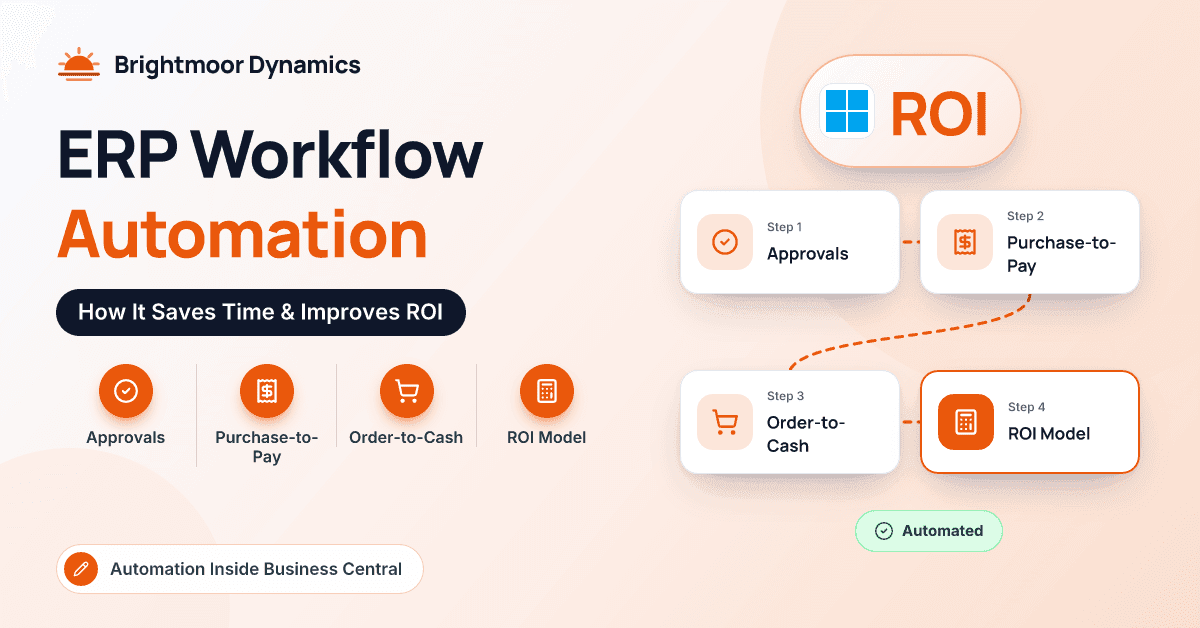
A purchase order sits in a manager's inbox for three days because she's at a trade show. An AP clerk keys the same forty invoice lines she keyed last month. The controller types the same eight accrual entries at every month-end. None of this appears as a line on the P&L, but together it's one of the most expensive habits a growing company has.
ERP workflow automation moves that work into the system of record: approvals that route themselves, documents that post on a schedule, journals that recur, and flows that connect your ERP to Outlook and Teams. Drawing on our Business Central projects with distributors and light manufacturers, this article covers where automation pays off first, how to set it up in Business Central, and how to build an ROI case your CFO will believe, including a clearly hypothetical worked example.
What Is ERP Workflow Automation?
ERP workflow automation means using your ERP's own rules, workflows, schedules and connected tools to move transactions forward without someone pushing them by hand. It differs from bolt-on robotic process automation, which mimics clicks on a screen. When automation lives inside the ERP, it shares the same permissions, audit trail and data as everything else, so it's easier to control and less likely to break when a screen changes.
In Business Central, the main tools are approval workflows, the job queue for scheduled batch jobs and reports, recurring journals and recurring billing, incoming document and e-document handling, and Power Automate for anything that crosses into Microsoft 365 or other systems.
Where Does Automation Pay Off First in Business Central?
Approval workflows
Approvals are the classic bottleneck. Start on the Approval User Setup page: for each user, set an approver and limits such as Purchase Amount Approval Limit and Sales Amount Approval Limit. Then open Workflows, create one from a Microsoft template such as Purchase Order Approval Workflow, and adjust the conditions, for example only orders over $5,000. The approver type (Approver, Salesperson/Purchaser or Workflow User Group) and limit type (Approver Chain, Direct Approver, First Qualified Approver or Specific Approver) decide who receives each request.
Templates also cover sales documents, customers, vendors, items and general journal batches. Approvers work from the Requests to Approve page or from notifications, and once a document is approved, the workflow can release it automatically so purchasing isn't waiting on someone's memory.
Purchase-to-pay
The requisition or planning worksheet proposes purchase orders from your reorder policies, and Carry Out Action Message creates them in one step. After receipt, buyers build the vendor invoice from posted receipt lines with Get Receipt Lines rather than retyping them, and non-PO invoices can go through their own approval workflow. At payment time, Suggest Vendor Payments in the payment journal proposes what's due and can be set to find payment discounts, before you export a payment file for your bank.
Order-to-cash
On the sales side, credit warnings in Sales & Receivables Setup, or a credit-limit approval workflow, stop risky orders before they ship. Post with Job Queue moves batch posting into the background so users aren't stuck watching a progress bar. Post and Send uses each customer's document sending profile to email invoices in the right format. When payments arrive, the payment reconciliation journal's Apply Automatically matches bank lines to open invoices, leaving staff to handle only the exceptions.
Recurring journals and period-end
The recurring general journal handles the entries your team types every month: rent, depreciation adjustments, accruals and allocations. Recurring methods such as Fixed, Variable and Balance, plus their reversing versions, combine with a recurring frequency like 1M so lines roll forward after posting. Allocation lines split amounts across departments or dimensions, and deferral templates spread prepaid expenses or deferred revenue automatically. For recurring billing, standard sales codes and the Create Recurring Sales Invoices batch job produce monthly invoices in one run. Then schedule routine batch jobs, such as cost adjustment, on the job queue overnight.
Document capture
Business Central's Incoming Documents feature can route PDFs to an OCR service and create draft purchase invoices, while the e-documents framework handles structured electronic invoices. Most of our distribution clients with meaningful invoice volume still add a dedicated AP capture extension; our guide to Business Central extensions and add-ons explains what to evaluate.
Power Automate with Business Central
Power Automate extends automation beyond Business Central. The Business Central connector can trigger flows when records are created or changed and can create or update records, and the Automate action on many pages lets users start or build flows in context. Useful patterns include approval requests answered directly from Outlook or Teams, saving invoices from a shared AP mailbox into Business Central, alerting a buyer in Teams when a large purchase order is released, and filing posted documents in SharePoint. Give every flow a named owner and keep production flows in a governed environment. This guide to automating manual processes without hiring developers covers the governance side well.
How Do You Calculate the ROI of ERP Workflow Automation?
An honest ROI model has three benefit levers and one cost line:
- Time saved: transactions × minutes saved × loaded hourly cost. Count it as cash only if hours are redeployed or a hire is avoided; otherwise call it capacity.
- Error cost avoided: volume × error rate × cost per error, covering duplicate payments, mis-keyed prices, wrong shipments and the credit notes that follow.
- Cycle-time value: faster approvals and invoicing shorten cash cycles. Value fewer days sales outstanding (DSO) as daily sales × days × cost of capital, and add early-payment discounts captured.
- Costs: subscriptions, partner setup, internal time for testing and training, and ongoing maintenance of workflows and flows.
Measure the baseline before you change anything. For broader frameworks, see how to measure the ROI of digital transformation.
What Does a Worked Example Look Like?
Every number below is hypothetical. Suppose a 70-person distributor on Business Central processes 1,200 vendor invoices a month, bills about $1.2 million a month, and is considering an AP capture extension, purchase approval workflows and a few Power Automate flows.
| Benefit or cost | Hypothetical assumption | Annual value |
|---|---|---|
| AP time saved | 1,200 invoices a month, 4 minutes saved each, $40 loaded hourly cost | $38,400 |
| Errors avoided | 24 reworked invoices a month at $50 each, cut in half | $7,200 |
| Discounts captured | 1% on $60,000 a month of discount-eligible invoices previously missed | $7,200 |
| Faster collection | DSO down 2 days on roughly $40,000 of daily sales, 8% cost of capital | $6,400 |
| Total annual benefit | $59,200 | |
| Year-one cost | Partner setup and internal time ($20,000) plus subscriptions ($10,000) | ($30,000) |
With every benefit counted, monthly benefit is about $4,900, so the project pays back in a little over six months and returns roughly $29,000 net in year one. Now run it the skeptical way and give zero credit for time saved. Benefits fall to $20,800 a year, year one finishes about $9,200 behind, and year two (subscriptions only) more than recovers it. Both versions are worth showing your CFO. Real costs vary widely, so check current vendor pricing.
What Are the Warning Signs of Automation Gone Wrong?
- Approval chains so deep that requests still sit for days. Fewer levels with sensible limits beat five approvers on every PO.
- Automating a broken process. Routing every $50 purchase for approval just makes the bottleneck faster.
- Notification overload. When people get forty alerts a day, they stop reading all of them.
- Orphaned flows and silent failures. Check Job Queue Entries for error statuses and make sure every flow has an owner who still works there.
- No baseline. If nobody measured before, nobody can prove value after.
Key takeaway: The biggest ERP automation returns usually come from unglamorous work: approvals, invoice entry, recurring journals and cash application. Measure before you start, and value time savings honestly.
Conclusion
ERP workflow automation earns its keep by removing waiting and re-keying from processes you already run every day. In Business Central, that means approval workflows with clear limits, purchase-to-pay and order-to-cash steps that move on their own, recurring journals, document capture and Power Automate flows that reach into Outlook and Teams. Build the business case on measured baselines and conservative assumptions, show the version without time savings as well, and review your workflows as the business grows.
If you'd like help finding the automation opportunities in your own Business Central environment, the team at Brightmoor Dynamics would be glad to talk.
Frequently Asked Questions
What processes should we automate first in our ERP?
Start where volume, delay and error cost meet: purchase approvals, vendor invoice entry and matching, recurring journals and customer invoicing are common first candidates. Measure current effort first so you can compare. Leave rare, judgment-heavy processes for later.
Do we need Power Automate, or are Business Central workflows enough?
Built-in workflows handle approvals and many in-system events well. Power Automate adds reach: approvals in Outlook and Teams, connections to SharePoint and other apps, and logic that spans systems. Many companies use both, so check current Power Automate licensing for the scenarios you plan.
How long does it take to see ROI from ERP workflow automation?
It depends on your volumes and costs. In the hypothetical example above, payback lands within the first year when time savings count and within about two years when they don't. Build your own model from measured baselines rather than vendor averages.
Does automation remove the need for approvals and controls?
No, it makes them more consistent. Automated workflows apply the same limits every time, record who approved what and when, and support segregation of duties. Review approval limits and workflow conditions at least annually as the business changes.